📁 Local folders: Work directly with files on your device
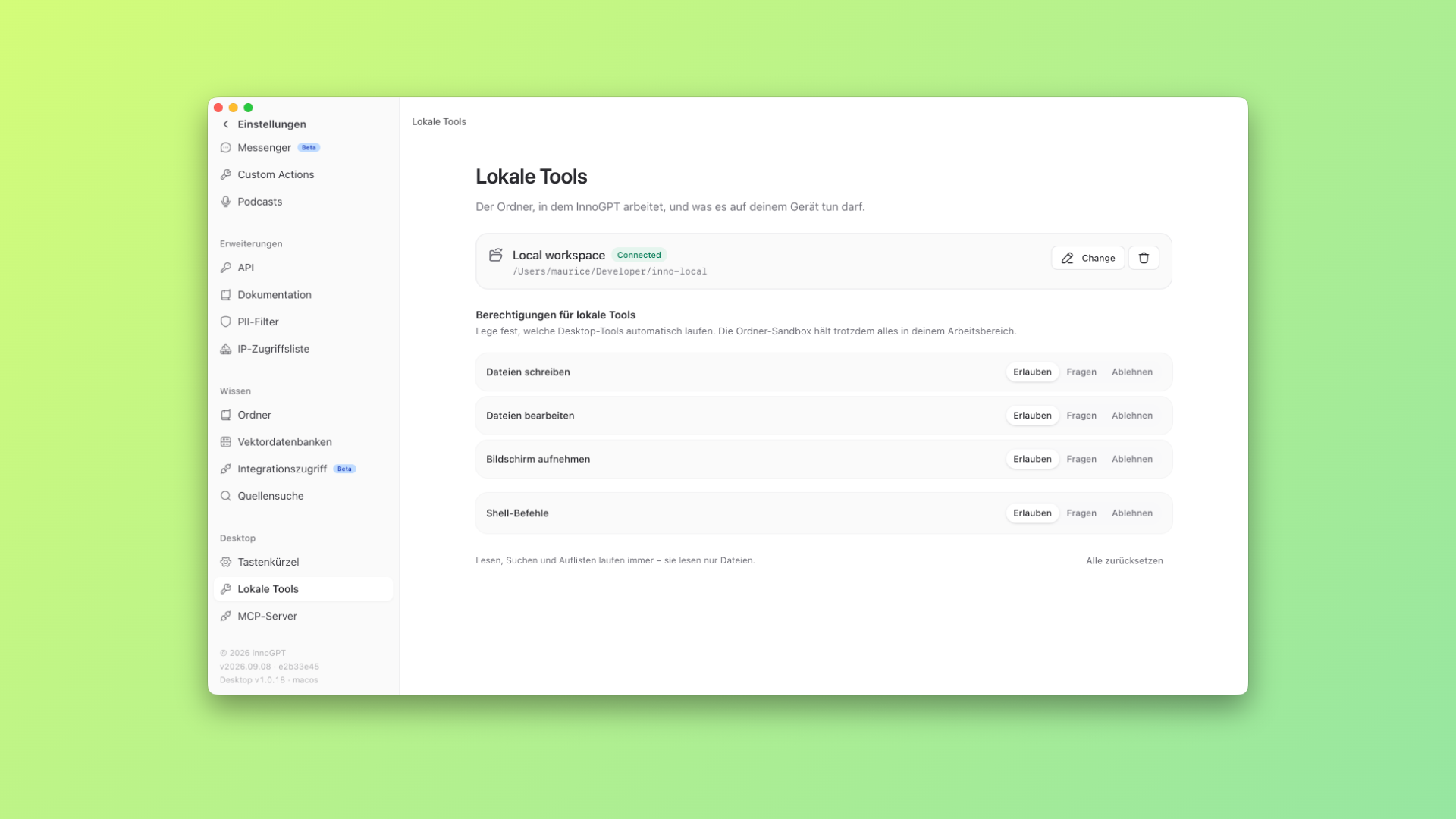
With local folders, innoGPT uses the desktop app to access a shared work folder. You can read, edit and create files in it, and run commands through the shell.
This feature is turned off by default and must be enabled by an admin. See the instructions below.
Why we built this
Longer tasks quickly produce many versions of the same file. You download a presentation, edit it and upload the next version again. Similar to Claude Cowork or Claude Code, innoGPT works directly with files in a shared folder on your device.
What you can do with it
Edit files: Let innoGPT update existing files directly in the shared folder.
Work in one version: Keep developing presentations, websites or documents across several chats.
Create new files: Have content and the file structures you need created directly in the work folder.
Tidy up folders: For example, sort your Downloads folder by topic or file type.
Run shell commands: Allow innoGPT to run suitable commands on your device.
How to get started
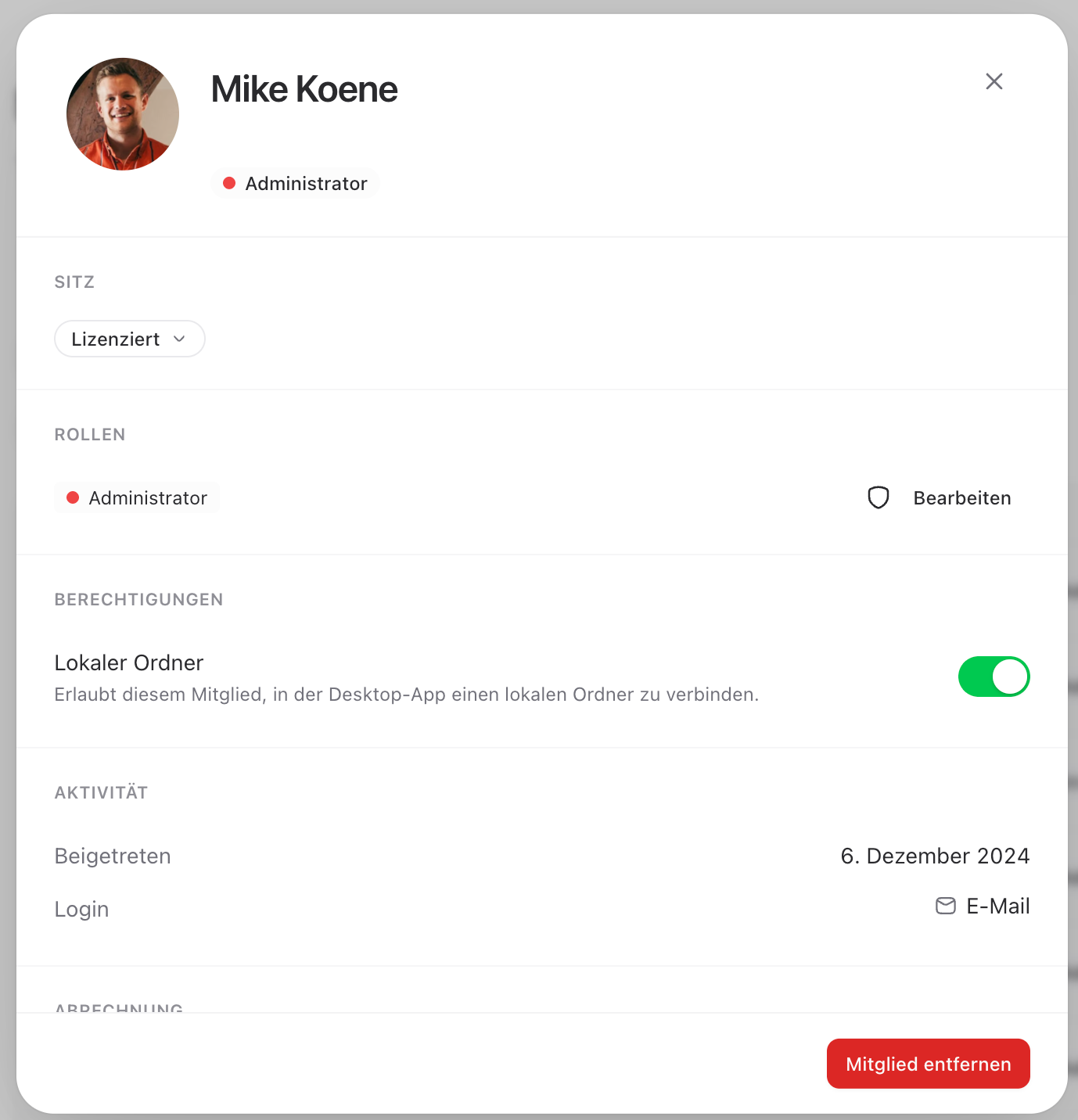
An admin opens Members, selects the person and turns on “Local folder” under Permissions. Access is currently granted per member and cannot be managed centrally through roles.
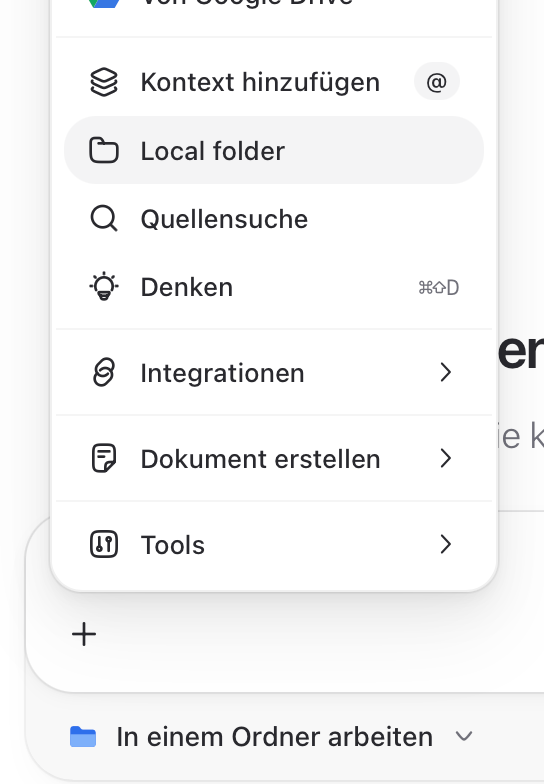
Then, in the desktop app, you open Settings → Local Tools, choose your work folder and set the individual permissions. In the chat, you see the connected folder right in the input field and can give innoGPT tasks for the files it contains.
We look forward to your feedback! 🙌
More improvements
The Integrations section now has a new overview that makes it easier to discover and add connections.
You can now use all available image generation models through the API.
Chat answers that use tools run more reliably, and repeated requests fail less often.
If a model is not available for image generation, you get an error message right away.
The SharePoint integration now also shows document libraries that were missing before.
Answers with images no longer show a false “Response stopped” message.