Projects with Team Channel: AI Moves from Singleplayer to Multiplayer
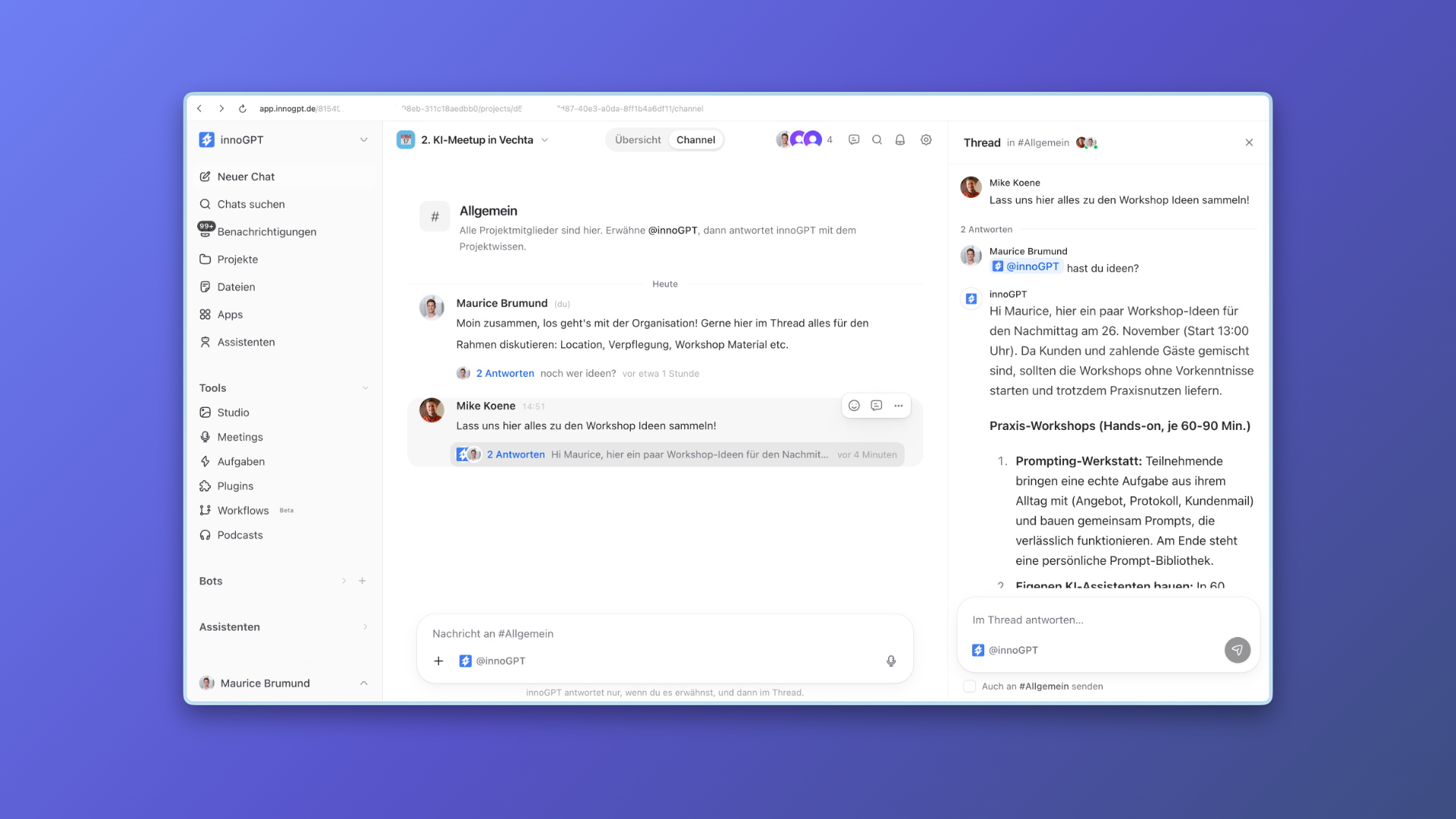
Starting now, the new projects with their own team channel are available in every workspace. This makes AI in innoGPT a true multiplayer tool for your team. Your team discusses together in the channel, works from the same project knowledge, and lets innoGPT write finished results directly into your shared work folders.
Why we built this
Many teams asked for a way to share chats with each other. But someone else's chat history only shows one person's unfinished thinking process. Real collaboration needs a shared workspace where the team and the AI work on the same result. If your marketing team is planning a major customer event, for example, everyone coordinates directly in the project channel, in clear threads. If someone brings in @innoGPT, the AI immediately knows all the stored briefings, answers questions in the thread, and saves finished invitation texts or spreadsheets directly in the connected work folder for everyone.
What you can do with it
Collaborate in the project channel: Exchange ideas with your team in threads in the #General channel, and bring in the AI as a team member when needed by mentioning
@innoGPT.Save results in work folders: Connect up to five work folders from your Files page, where innoGPT and your team can read, edit and save new results together.
Bundle knowledge sources: Upload documents or link folders from SharePoint, OneDrive and Google Drive. innoGPT searches these first for every question in the project.
Build a shared memory: Save important project details in the settings or with "remember ..." in the chat, so the whole team and the AI stay on the same page.
Set instructions and model: Define central rules for the entire project and choose the response model or custom assistants for the channel.
Keep access clearly separated: Invite colleagues or the whole team to the shared channel, while your own individual chats within the project remain your private drafting space.
How to get started
Click "Projects" in the left sidebar and create a new project with a name, icon and colour using the button at the top right. The gear icon opens the project settings, where you invite your team and connect your sources and work folders. At the top of the project view, you can switch at any time with one click between your "Overview" for private individual chats and the shared "Channel".
We look forward to your feedback! 🙌