☁️ Cloud Folder: Work directly with your file folders
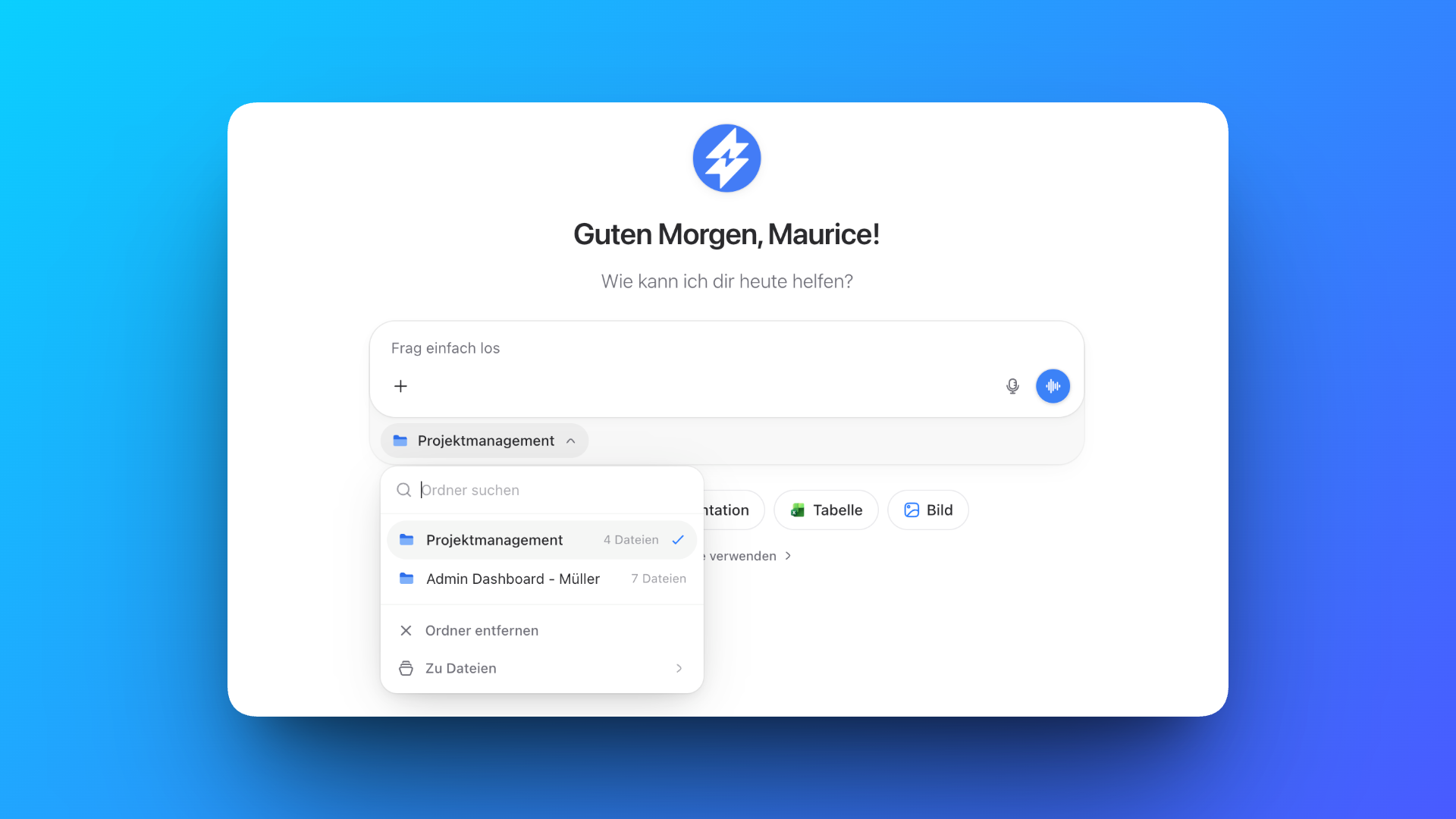
You can now create your own folders in the “Files” section and work directly in them. Select a folder in the chat, and innoGPT can read the files in it, edit them and create new files there.
Why we built this
In innoGPT, projects serve as a knowledge base for fixed information, guidelines or templates. For daily work, you also need a place where you can actively change content and store new results.
Projects and Cloud Folder: What's the difference?
Projects are knowledge folders: This is where you store fixed information such as guidelines, templates or company knowledge. innoGPT uses this content as a knowledge base for its answers.
Cloud Folders are work folders: This is where you actively work with your documents. You select a folder in the chat, and innoGPT can read the files in it, edit them and create new files directly there.
What you can do with it
Create work folders: Create your own folders for clients, tasks or topics in the “Files” section.
Select a folder in the chat: Decide which folder innoGPT should work in.
Include files: innoGPT reads the documents in the selected folder and uses them as context.
Edit files: Have existing documents and spreadsheets revised directly in the folder.
Create new files: Create new documents, spreadsheets and other work results in the selected folder.
Store results: innoGPT saves new and edited files directly in the active work folder.
How to get started
Create a new folder in the “Files” section and add existing documents if needed. Then click the folder icon below the chat input field and select the folder you want. Now you can tell innoGPT to read or edit the files in it, or to create new files there.
We look forward to your feedback! 🙌
More improvements
The notification center now has a clearer design.
Workflows now support native triggers from Microsoft 365.
Security-related changes to the workspace are now recorded in the activity log for administrators.
Enterprise users now also see on their smartphone, through a shield icon, whether personal data protection is active. (PII filter)
Ongoing meeting recordings are no longer interrupted by background updates.
Interrupted answers resume automatically after the app restarts.
Citations in the mobile chat now display correctly and the same way as in the web version.
On iOS and Android, the keyboard no longer covers the input field for renaming chats.
The buttons in the message field are now properly aligned.
Voice output now uses your language and shows the live transcript correctly.
You can move freely through the transcript with the keyboard, scroll bar or touch, without the view jumping back automatically.
In real-time voice mode, you can listen to voices before you choose one.
In voice mode, you can ask out loud for email drafts to be created in Outlook. The email is only ever saved as a draft.
Skills with extra files such as templates or reference documents load more reliably, also when you switch between several skills and during longer actions.
We have also fixed other small bugs and improved usability in several places.