👷♀️New Assistant Builder + Evals
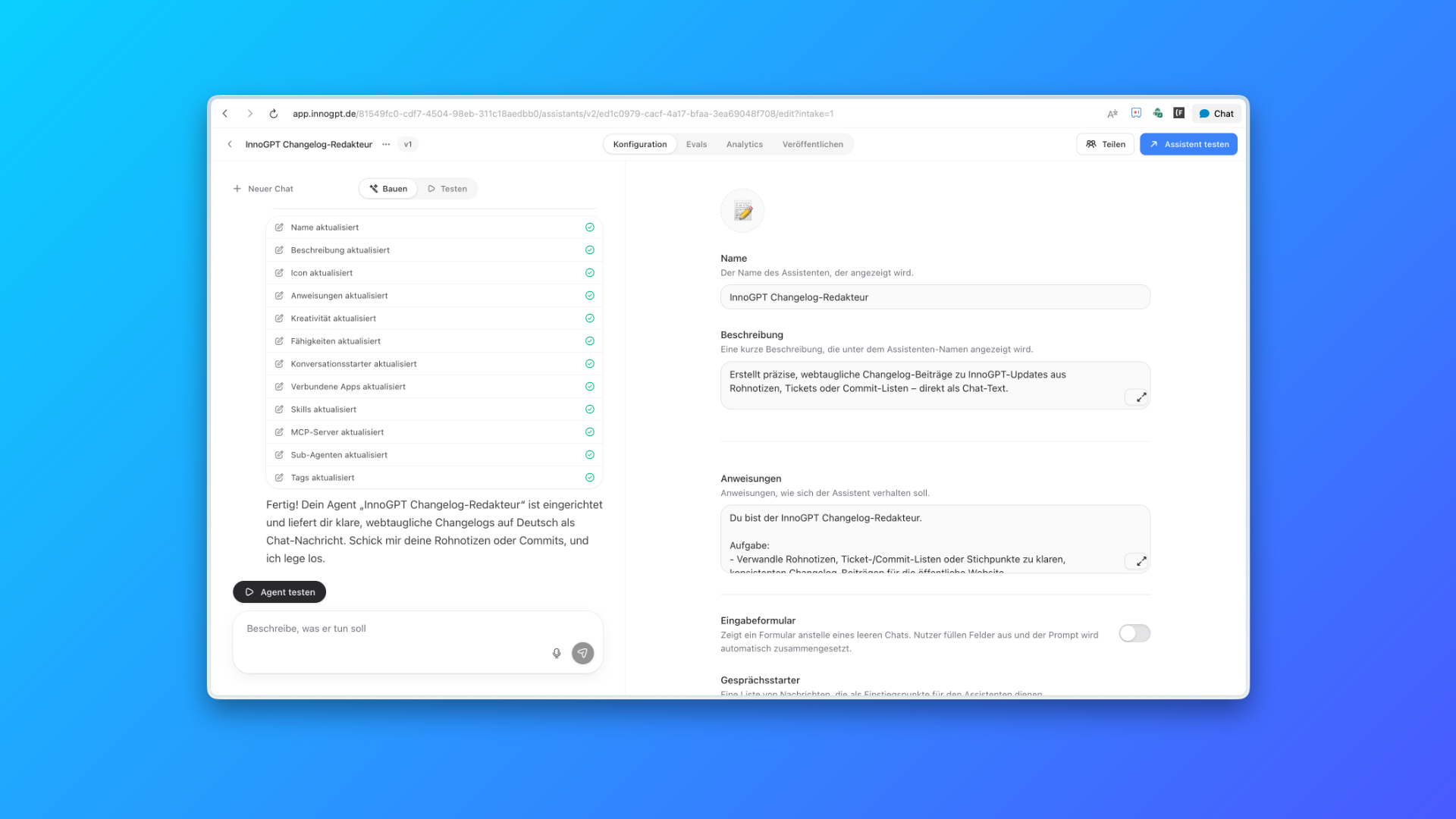
Two new features for assistants are now live. With the new Assistant Builder, you create assistants directly in the chat. With Evals, you check their quality against your own test cases.
👷♀️New Assistant Builder
Why we built this
Setting up an assistant used to involve many separate fields and settings. This took a lot of effort, especially for new users. With the new builder, you describe in the chat what task your assistant should take on. The AI then helps you set it up the right way.
What you can do with it
Create by chat: Describe in your own words what the assistant should do.
Adjust easily: Tell the AI which behavior or content it should change.
Follow the configuration: See right away which fields and instructions are being filled in.
📊 Evals for assistants
Why we built this
Changes to instructions, knowledge or models can affect an assistant's answers. Until now, important use cases had to be checked one by one after every change. With Evals, you save typical questions and expected results as reusable tests.
What you can do with it
Create test sets: Add typical questions and the answers you want.
Import CSV files: Upload existing test cases in one go.
Check automatically: Have answers rated by an AI, by the tools used, or by defined terms.
Compare results: Repeat tests after changes and track quality across versions.
Spot weak points: See right away which test cases passed and where you should improve the assistant.
How to get started
Open Assistants and click New assistant to start the builder. For Evals, open an assistant, switch to Evals at the top and create your first test set there.
We look forward to your feedback! 🙌
More improvements under the hood:
Large and very long documents are automatically processed in the right way when you upload them.
Admins can set in more detail which integrations members are allowed to connect.
User groups, Photo Studio, Video Studio and Podcasts can be enabled selectively in permission management.
Custom actions now support HTTP Basic authentication and can also be created without a specification URL.
A team's member list can be exported as a CSV or Excel file.
Notifications show previews more clearly and let you make decisions directly in the list.
Folders are visible directly in the chat area, and assigned chats reliably stay saved in them.
Channels have a revised layout with search, actions and mentions.
Tasks can be created in a dialog and then followed as a thread. You confirm changes before they are applied.
You can send more messages while the model is still answering.
Images from chats stay available in the chat area and can be analyzed again later.
An entire SharePoint site can be connected as a knowledge source.
Figures in DOCX files are recognized, and JSON and XML files are displayed in a readable way.
You can report AI-generated content directly in the chat.
Chat errors include clearer explanations and a concrete next step.
When a model is briefly overloaded, the chat switches more reliably to an available fallback model.
Interrupted answers are correctly detected and resumed automatically.
Automations with many steps and automated routines run through more reliably.
Email recipients in automations are checked before saving.
Document search and search in OneDrive and SharePoint folders return results reliably again.
The chat history and the order of messages stay stable after edits.
Your question is kept even with very large tool results.
The model picker only shows the models enabled for you, with the matching provider icons.
The interface now follows your workspace language more reliably.
Connections to Microsoft Entra ID are detected more reliably.