🎙️ Real-time voice mode: Talk to innoGPT
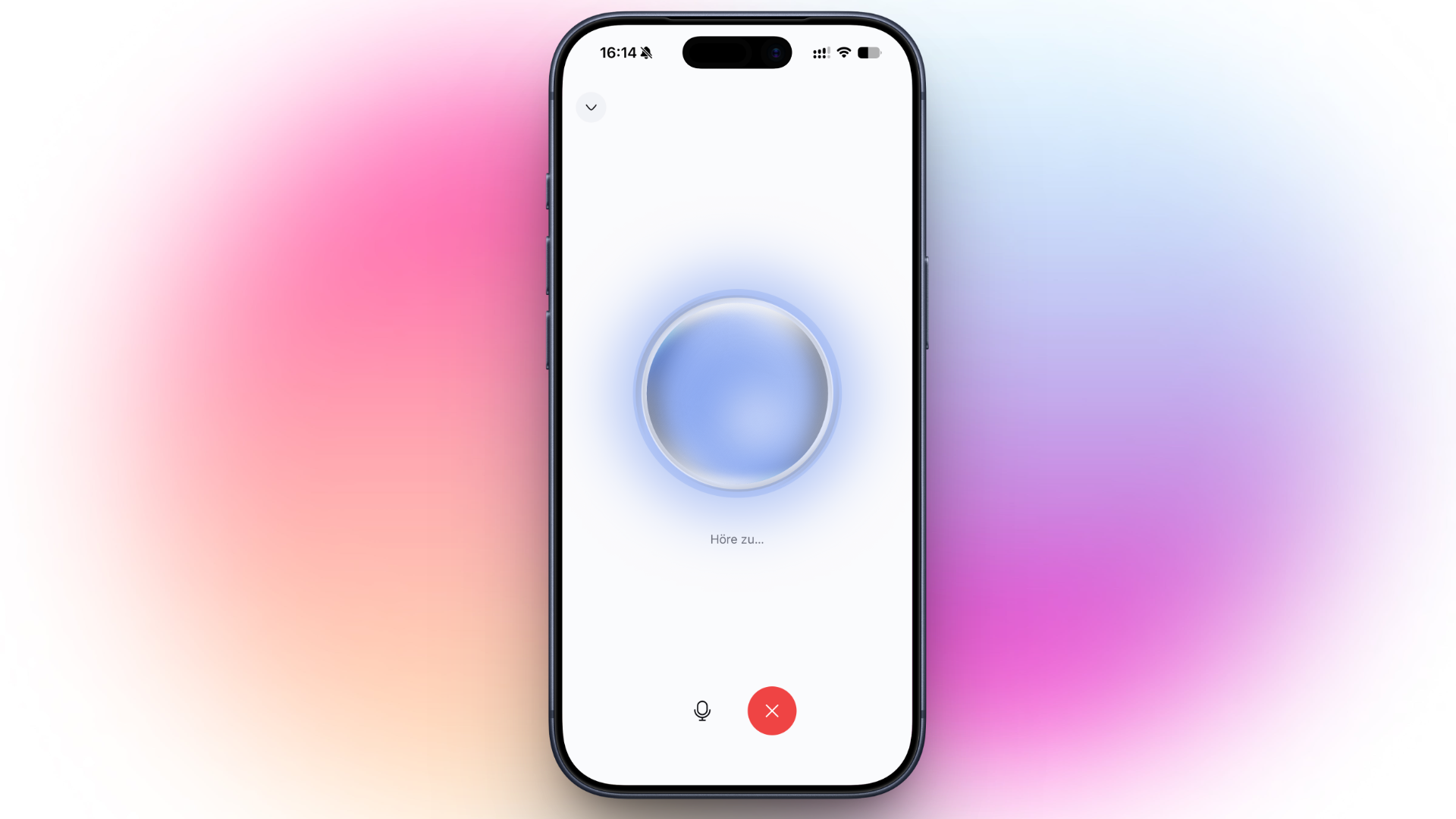
Rather talk than type? With the new real-time voice mode, you open a direct voice connection to the AI in the chat within seconds and just start talking. It is available now and turned on by default. You can turn it off at any time.
Why we built this
Speech is the most natural way to work with an AI. Whenever you are on the go, have your hands full or simply want to get results faster, typing is the wrong approach. One click on the real-time button, the connection is up, and the AI listens, answers and completes tasks in the same conversation.
What you can do with it
Just start talking: Open the real-time button in the chat view or in the mobile app and connect, just like a phone call.

Live answers: The AI listens to you in real time and answers right away, without a separate voice solution in front of it. It is a dedicated AI model.
Use tools in the conversation: While you talk, the AI smoothly uses your MCP servers, apps and other tools.
Work in line with GDPR: It all runs through OpenAI's EU endpoint with Zero Data Retention.
Stay flexible: You can turn the mode on and off at any time.
How to get started
In the chat view and in the mobile app, the mode is available right where the send button usually is. (Note: as soon as you type text, the real-time button is replaced by the normal send button.)
Tap the real-time button to connect. If it is on by default, you can turn it off again in the settings. For your voice input to be processed properly, we recommend a stable internet connection and microphone access enabled.
Of course, it is also available in the desktop version and in the iOS and Android apps.
⚡ Gemini 3.7 Flash: Available now
Gemini 3.7 Flash is now available to you in innoGPT. Select the model directly in the chat and use it for your next requests.
🧩 Chat bubble widget: Your assistant on your website
Published assistants can now be embedded on your own website as a chat bubble widget. Visitors can then talk to your assistant directly without leaving the platform. Just paste the code, and the assistant is live on your site.
How to get started
Paste the provided code into your website and replace it with the ID of your published assistant. The chat bubble then appears automatically in the corner of your page, and visitors can get started.
We look forward to your feedback! 🚀
More improvements
Agent plugins (skills and MCP servers) can now be imported directly.
New AI tools search past meetings and task results directly in the chat, and the search is faster.
Sources in the chat now show favicons and grouped pills with real metadata about the source.
Text recognition (OCR) in uploaded images is more accurate and gives more precise results.
Answers about images work more reliably, even when the model cannot analyze images.
You can now upload .skill packages directly.
The hint text for file uploads is clearer and now mentions the .skill format.